
LivoPC team · AI-assisted editorial summary
How to identify your PC's power supply
Find the exact model and the information you need before choosing a GPU.
Updated on · Fundamentals
What to consider first
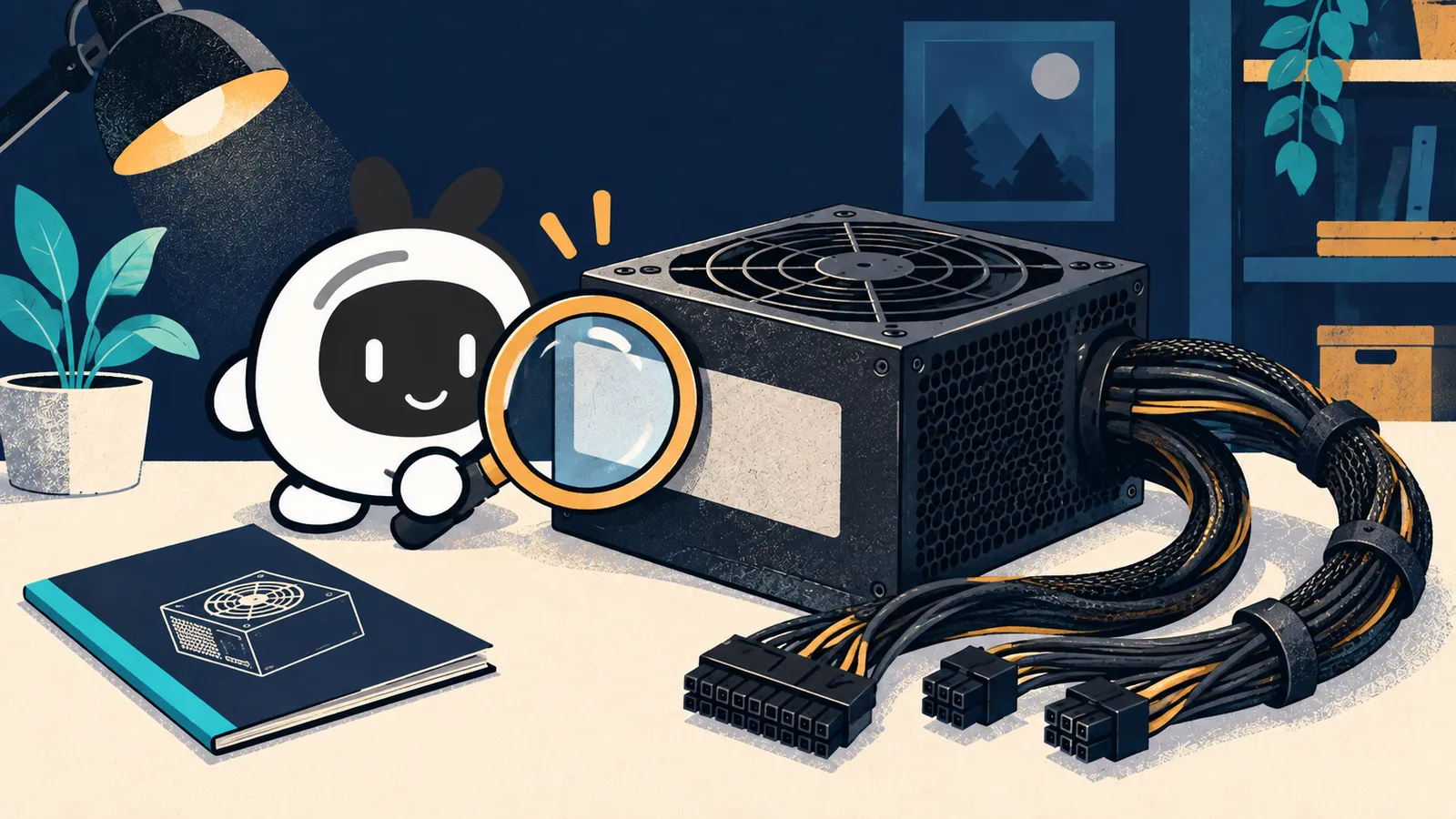
Identify the exact model from the external label, packaging or receipt and check the manufacturer's documentation. Advertised wattage and software readings are not enough to confirm the power supply or its cables.
Identifying the model does not prove its condition, authenticity or electrical safety. Do not open the power supply enclosure.
1. Start with identification
Look for the receipt, packaging or a readable photo of the external label. On Corsair power supplies, the part number starts with CP and may be on the side or top. The product name and this code help distinguish variants; wattage alone does not identify the model.
2. Record only what you can confirm
Shut down the PC and unplug it before accessing the side of the case, following the manual. Do not open the power supply enclosure. If you cannot safely access the label, ask a technician for help. In LivoPC, leave the model and connectors unknown until you can check them.
3. What to check before an upgrade
Once you have the model, open the official manual: wattage, available connectors and supplied cables are different pieces of information. A photo or local reading does not prove condition, authenticity or the ability to handle the new configuration. Keep serial numbers and receipts in private fields only.
A power supply specification page to consult
Catalog examples for checking documentation and current offers. They are not a buying ranking.
CORSAIR RM650 650 W
No verified offers
Explore offersHow this guide was prepared
Original guide based on the public documentation below, accessed on each reference date. No performance tests or physical inspections were performed for this text. Check current documentation for your model and revision before acting; examples are not universal buying recommendations.
- Corsair — finding part numbers · accessed on